日本語/English
Using MetaLife in Class
Kazumi Hata, Professor Emeritus, Purdue University
<khatasa@purdue.edu>
The COVID-19 pandemic in 2020 triggered a rapid shift to online platforms, and this wave also swept through the education sector. Many universities adopted online video systems, such as Zoom, and the number of online courses increased. Meanwhile, numerous systems known as 2D metaverses were developed and released to the market, designed to recreate virtual office environments that closely resemble traditional workplaces to support remote work for companies. The following is an example of a virtual office from MetaLife. Participants appear as avatars, and when avatars come close to one another, their video feeds turn on, allowing them to converse. Since names appear alongside the avatars, it is easy to see who is where. With a game-like feel, users can move around the space using the arrow keys or by double-clicking the mouse. There is also a “megaphone” (bullhorn) feature: when a participant turns on their megaphone, their voice reaches everyone regardless of their location.
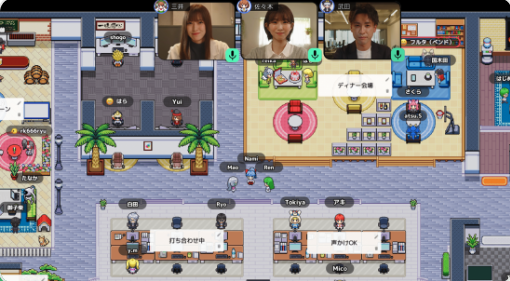
Image from MetaLife
MetaLife offers a free plan for up to 25 users, and since it seems well-suited for use in language education settings, I’ve listed a few examples below. While the free plan does have some limitations, it provides all the basic features needed to use the 2D metaverse, allowing both students and teachers to participate in classes and activities more actively than they would on Zoom.
This is a free space created using the “Education” template. There is a stage at the front of the room, and in the center are six small rooms labeled A through F. On either side of the room are areas labeled G through L. In rooms A through F, participants can only hear each other’s voices. In areas G through L, participants gather nearby to talk. The instructor (or presenter) can move to the stage and turn on the megaphone to address everyone.
It seems like it would be useful not only for presentations to the entire group but also for workshops that require small groups. Below are a few possible ways to use it.
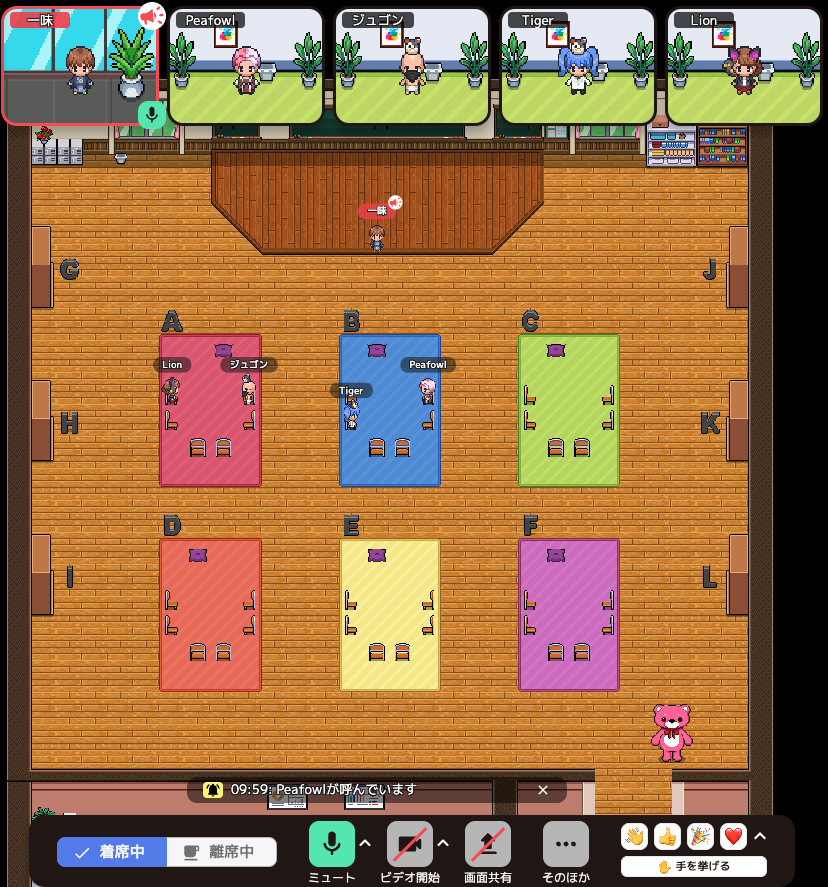
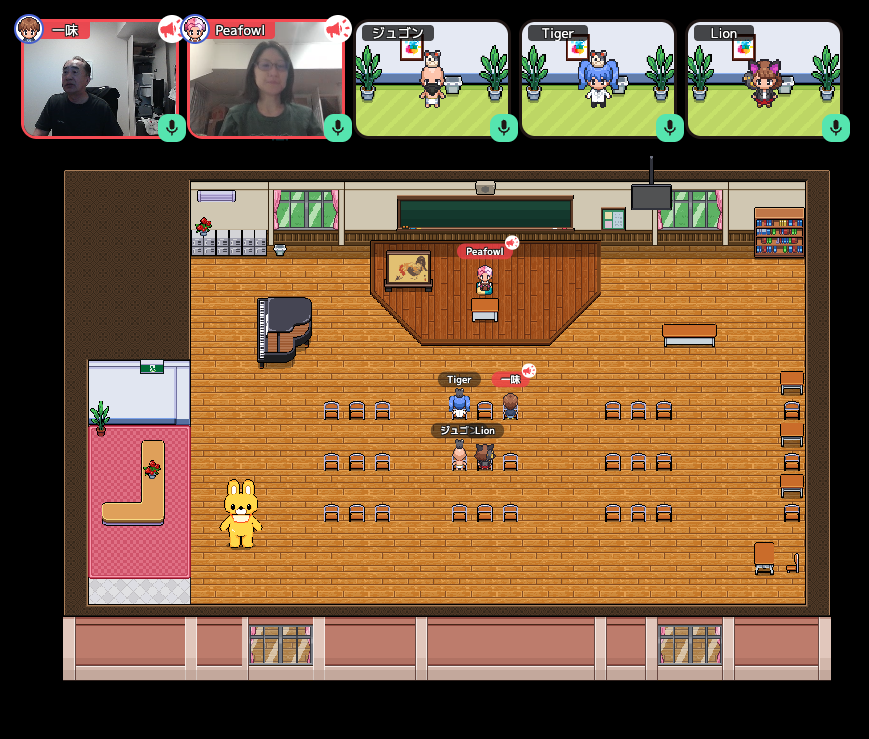
Images: Kobanashi Workshop(Left: Floor for Practice Right: Floor for Presentation)
1. Self-Introduction
This activity involves participants who are meeting for the first time forming pairs to introduce themselves. At the instructor’s signal, they switch partners one after another to continue introducing themselves. Once participants enter a room marked with a letter of the alphabet, they can only speak to the person in that room. If there aren’t enough rooms, they can gather around a letter sign (such as G, H, or I) so that only their voices can be heard. When the instructor gives the signal, one person in each pair should move to the next room, allowing participants to efficiently speak with many people.
2. Discussions in the Main Group and Small Groups
Instead of switching back and forth between the main group and breakout rooms like you would on Zoom, you can enter separate rooms from the start. If everyone turns on their microphones, everyone can hear each other. You can see video feeds and share screens, such as PowerPoint presentations. And by turning off your microphone, you can easily hold group discussions. Instructors can join these group discussions by moving to the respective rooms. This also allows them to keep track of who is where at all times.
3. Conversation Tables
Conversation tables are often used as extracurricular activities. By assigning specific themes to small rooms, we can provide a space where learners with similar interests can freely discuss topics. (Examples: manga and anime, J-Pop, travel, food, history, etc.))
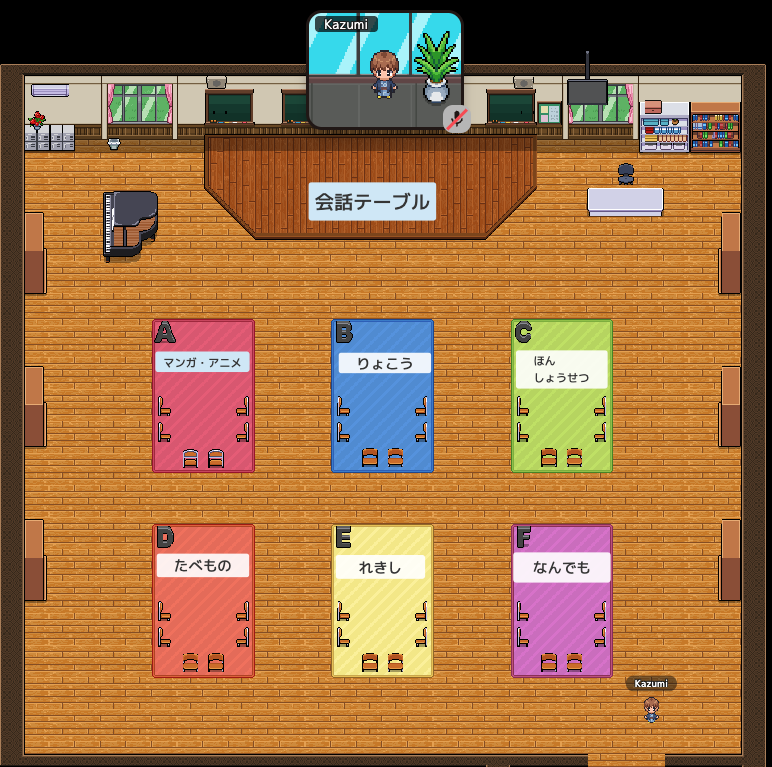
Conversation Tables
4. Office Hours (Q&A Session)
Office hours are the times when faculty members are available in their offices to answer students’ questions, and these can be conducted online.
5. Presenting on Stage
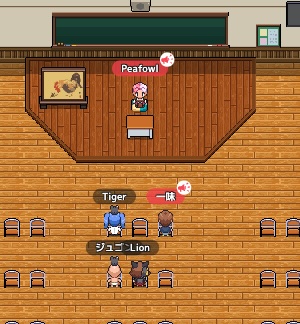
The school template features a large open space with rows of chairs, rather than a small room in the center. By using this space, you can have participants sit in their chairs while the presenter speaks from the stage. The presenter turns on the megaphone (bullhorn). This creates the atmosphere of a typical academic conference. While the presenter doesn’t need to physically move to the stage just to speak, the sense of immersion that comes from having the avatar move around is a unique feature of the metaverse.
What You Can and Cannot Do with the Free Plan
1. Up to 25 participants are free. If the limit is exceeded, new participants cannot join, but the session appears to continue. (I haven’t actually encountered this situation, so I’m not entirely sure what happens.)
2. There is no time limit on sessions.
3. You can set a password to restrict access to participants.
4. Workspaces you create yourself are retained and can be accessed via a URL.
5. Participants do not need to have a MetaLife account.
6. You cannot design your own workspace; you must choose from the five provided templates.
7. Video calls are limited to 40 minutes per day. If you exceed 40 minutes, the video will switch to avatar view, but the audio call will continue.
8. All participants can use the screen-sharing feature. However, each participant is limited to 40 minutes of screen-sharing per day.
9. you can create more than one space on the free plan.
While MetaLife’s free plan does have its limitations, it provides an environment where learners can participate more actively than on Zoom. I think it’s definitely worth a try, especially for those who haven’t used a 2D metaverse before.
Below is the URL for the space I created. It’s set up so anyone can join, so please feel free to drop by if you’re interested. I recommend inviting your friends so you can try it out with a group.
To create your own space, you need to sign up for MetaLife (free) and sign up for the free plan. It seems easiest to use a Gmail address for registration.
Here is the URL for that. https://metalife.co.jp/
When creating your own space, please select “Workspace (continuous use).” If you select “Event (one-time use),” you will only be able to use that space for 24 hours.
2026.4.20
